
A Strategy for Exploring k=2, r=2 Cellular Automata



Requires a Wolfram Notebook System
Interact on desktop, mobile and cloud with the free Wolfram Player or other Wolfram Language products.
The 256  elementary cellular automata (ECA) rules can all be found somewhere among the four billion rules of the
  ,
,  cellular automata (CA). To find this correspondence, associate each three-bit neighborhood of the ECA with the four specific five-bit neighborhoods of the CA that have the same three middle bits as the ECA. The resulting pattern is determined solely by the inner three bits, exactly like an rule. Essentially, the status of the outermost bits does not matter. But now, what about slight perturbations of this mapping? Will there be similarly shaped CA patterns or radically different patterns?
Contributed by: John Kiehl (March 2011)
Open content licensed under CC BY-NC-SA
Snapshots
Details
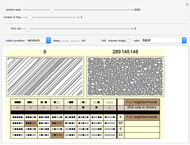
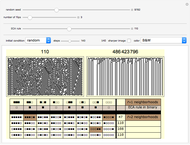
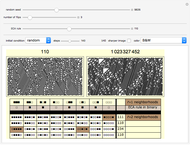
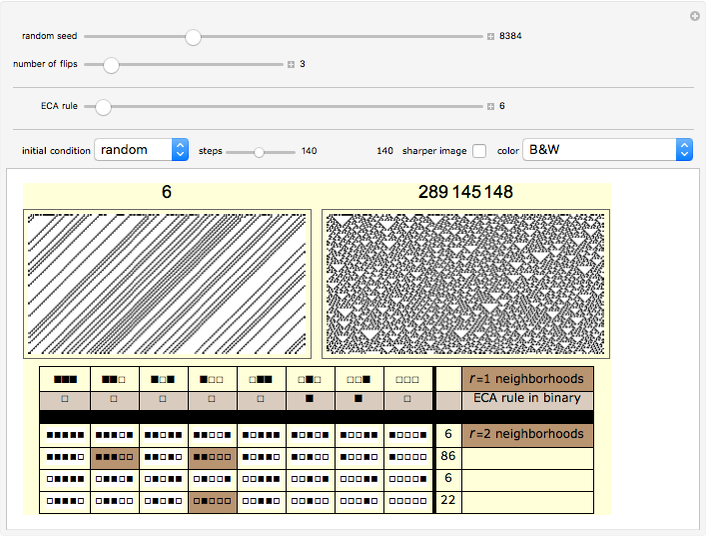
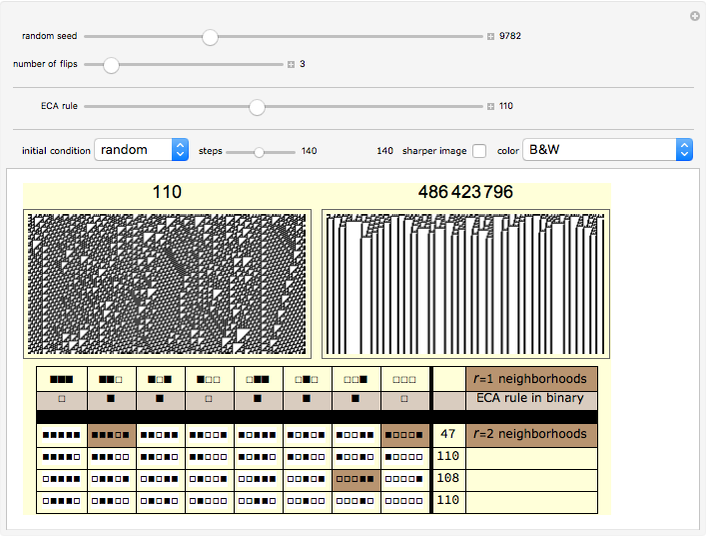
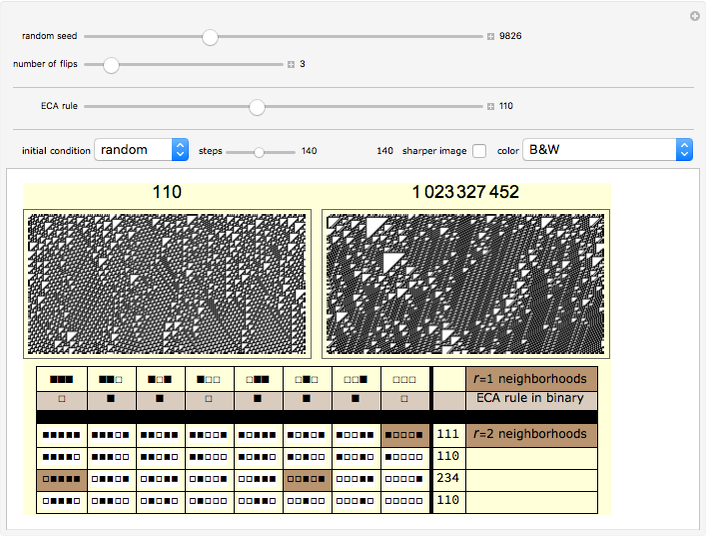
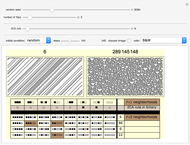
The lower left-hand side of the graphic above has eight columns—one column for each bit of the elementary cellular automata (ECA) rule. Below each bit of the ECA rule are the four neighborhoods of the larger rule space that have the same bit pattern for their middle three bits. If all four of these neighborhoods are assigned the same bit as the original bit of the ECA rule, the ECA is recreated in the rule space. This strategy essentially eliminates the influence of the outside bits on the unfolding pattern. In other words, the new rule's behavior is completely determined by the center bit and its two immediate neighbors, just like the rule.
The "number of flips" slider is initialized to zero to show you the rule that exactly mimics the chosen ECA rule. Moving this slider will introduce bit flips, taking you to other rules that may or may not be similar in appearance. The flipped bits are highlighted in brown.
You can also click the 32 neighborhoods of the rule to flip the corresponding rule bit. These choices are highlighted in pink. In fact these mouse-chosen flips are not affected by the slider's choices, so the two strategies can be combined.
When the "number of flips" slider is set to "1", the "random seed" slider will sequentially step through all possible 32 bit flips. If you choose to flip two bits, there are 495 possible new combinations, and the random seed slider, again, will step through all the possibilities. For more than two bit flips the number of possibilities grows out of control, so the random seed slider will randomly select among the possible 32 bits. For example, there are 4960 ways to choose three bits from the 32 bits. The Mathematica command Binomial[32,  ] will tell you how many different ways there are to choose
  objects from a set of 32 objects where order does not matter.
It is helpful to hold the Option or Alt key while moving the "random seed" slider to allow it to change value more gradually.
Snapshot 1: With only three bit flips this class 1 rule becomes class 4.
Snapshot 2: With three bit flips this class 4 rule becomes class 1.
Snapshot 3: These three bit flips retain the class 4 behavior of ECA rule 110.
Snapshot 4: Here the bits are flipped by choosing specific neighborhoods with the mouse. These neighborhoods are highlighted in pink. Also, with "sharper image" unchecked you can zoom in or out using the "steps" slider.
Snapshot 5: You can add color to the rule, which emphasizes local structures. See the Colorization of Cellular Automata Demonstration for other colorization strategies.
Snapshot 6: The five-bit neighborhoods are arranged in four rows of eight neighborhoods. In each row the two outermost bits are the same. For example, in the first row the two outside bits are both black. Conceptually then you can think of each row as an eight-bit ECA rule embedded inside a particular bit pattern wrapper. The implied ECA rule is identified in the ninth column with its plot available as a tooltip.
Snapshots 7-9: Effective use of color.
Permanent Citation
 Stepping through k=3, r=1 Cellular Automata Rule Space
John Kiehl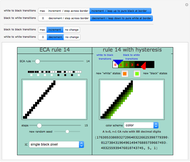 Hysteresis Modeled with Cellular Automata
John Kiehl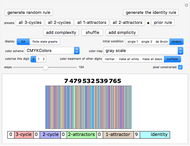 Prospecting for Complexity in k=3, r=1 Cellular Automata
John Kiehl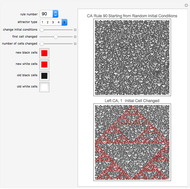 Cellular Automaton Classification according to Attractor Type
Matthew Gorski and John Lindner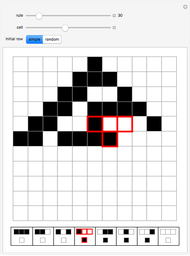 Cellular Automata Evaluation
Paul-Jean Letourneau Generations Cellular Automata
Ed Pegg Jr Hearing Cellular Automata
Rob Lockhart Radius-1/2 Cellular Automata
Daniel de Souza Carvalho Cellular Automata Entropy
Daniel de Souza Carvalho Additive Cellular Automata
Eric Rowland
-
 Musical Variables: Modes and Instruments
John Kiehl -
 Accidentals, on Purpose
John Kiehl -
Stepping through k=3, r=1 Cellular Automata Rule Space
John Kiehl -
 Beating and Roughness
John Kiehl -
 A Visit to Sphereland
John Kiehl -
 A Visit to Flatland
John Kiehl -
 A Sphere Visits Flatland
John Kiehl -
 Musical Logo Widget
John Kiehl -
Prospecting for Complexity in k=3, r=1 Cellular Automata
John Kiehl -
 Mamikon's Proof of the Pythagorean Theorem
John Kiehl -
 Hammer Time
John Kiehl -
 A Strategy for Exploring k=2, r=2 Cellular Automata
John Kiehl -
 A CA-horus Line
John Kiehl -
Hysteresis Modeled with Cellular Automata
John Kiehl -
 What Color Is the Bear?
John Kiehl -
 Refrigerator Poetry
John Kiehl -
 Two Lines Determine a Circle
John Kiehl -
 Root Routes
John Kiehl -
 Roots of Complex Numbers
John Kiehl -
 Complex Multiplication
John Kiehl